|
|
- Fixed Twitch account login in Account Manager
|
|
|
- Added support for Elgato 4K X, 4K S, HD60 X, Neo and Cam Link devices
- Fixed video aspect ratio issues when recording multiple monitors in a single video
- Fixed issues with capturing duplicated displays
- Improved HDR to SDR tone mapping
- Added SmartSeek in built-in video player (video preview when seeking)
|
|
|
- Fixed AVI to MP4 export
- Fixed Riot Games with Vanguard anti-cheat enabled (please use Screen Mode or Window Mode for League of Legends, Valorant and 2XKO game recording/streaming instead of Game Mode)
|
|
|
- Added support for Nvidia R590 (591.44 and newer) drivers
- Added split NVENC encoding support which allows faster video encoding using multiple NVENC hardware cores (on selected Nvidia RTX 4000/5000 GPU)
|
|
|
- Fixed lack of NVENC hardware acceleration on Nvidia RTX 5000 GPU family with 580.xx or newer drivers installed
- Temporary fix for DirectX 12 game capturing on Nvidia GTX and RTX GPUs with 580.xx or newer drivers installed
- Fixed video preview in HDR mode
|
|
|
- Final fixes and improvements for Windows 11 24H2 update (new update is now working just like on 23H2)
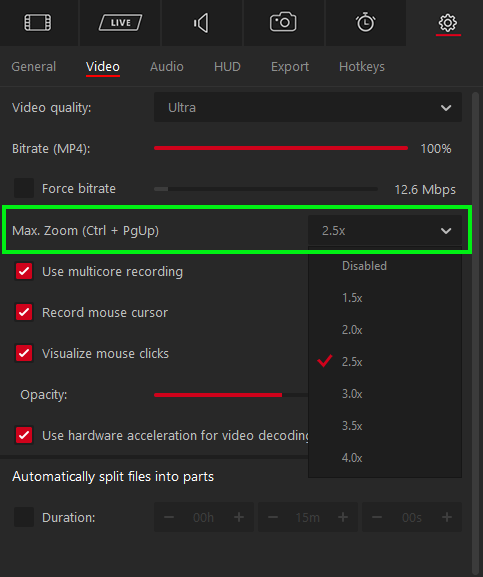
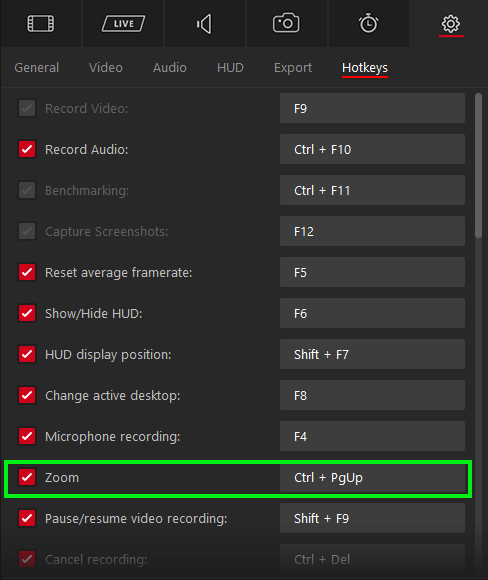
- Added real time video zoom that is following mouse cursor position. You can set the zoom amount in Settings-Video using "max. Zoom list". The default hotkey for turning zoom on/off is CTRL+PGUP and can be customized in hotkeys tab. When zoom is activated you will see a yellow frame around your screen
- Improved performance for Windows 11 24H2 update
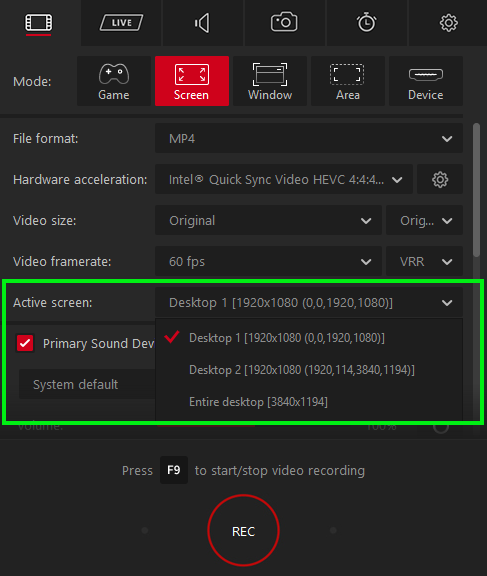
- Added "Entire desktop capture" to Active Screen list. This allows easy capture of all monitors in a single video using "Screen" mode
- Important fixes for VRR capture mode (Variable Refresh Rate)
- Zero lag real time preview
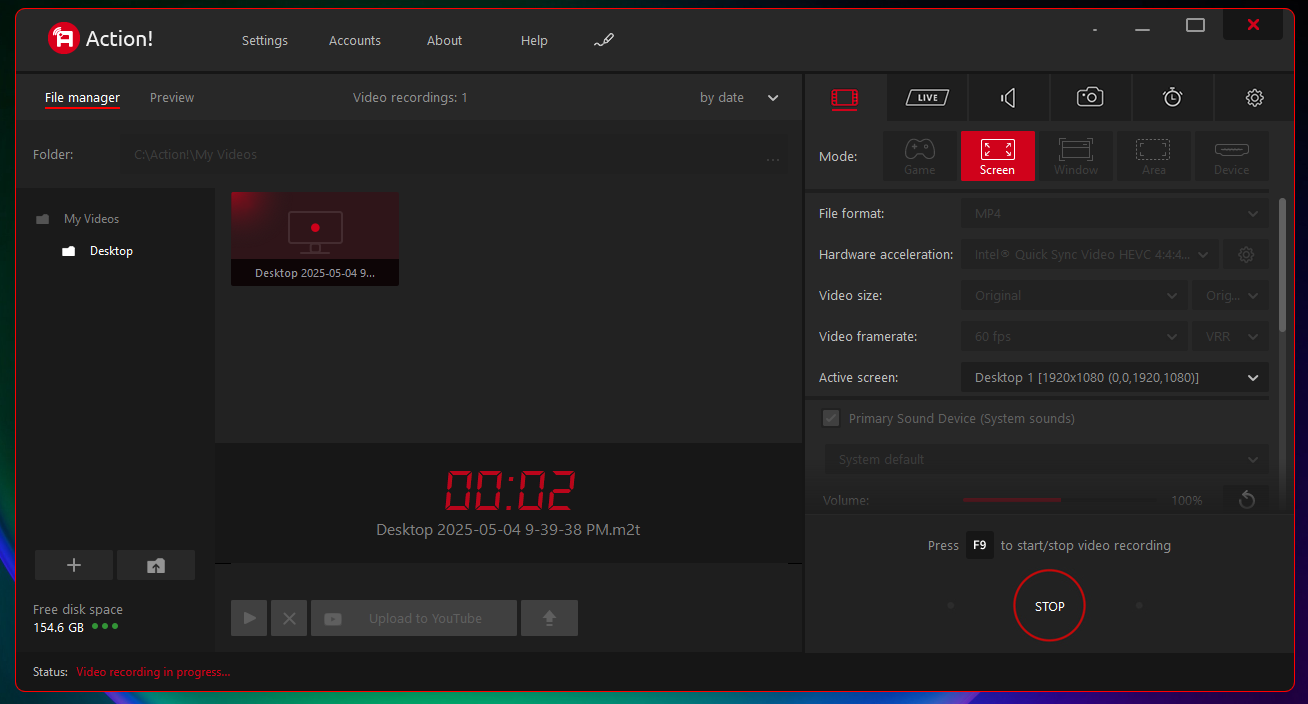
- Added red frame around Action! main window when recording/streaming is in progress (Windows 11)
|
|
|
- FIXED support for Nvidia RTX 5070/5080/5090 GPUs (444 recording is not working as CUDA is not working properly for this GPU, fix in drivers is needed).
- FIXED support for Windows Server 2025.
- FIXED automatic HDR detection for Windows 11 24H2 update.
Please note that currently Facebook integration is not working (direct streaming to your Facebook wall using Facebook API and account manager).
Streaming to Facebook is still possible using URL/Streamkey method. After trying to log in to your Facebook account you will see a message that Mirillis Streamer App is not working.
We are working on a new app that should be ready by the end of February 2025. Please forgive us for this inconvenience.
|
|
|
- Added new capture mode (Variable Refresh Rate) which allows intelligent video capture synchronized with display's v-sync, minimizing recorded file size and lowering power consumption and CPU/GPU use (please note that in this mode the video framerate is the maximum framerate at which the video will be captured - from 1fps to the value selected).
- Fixed 4:4:4 DirectX 9 (and older DirectX) recording (please note that DirectX 9 is recorded in 4:2:2 format and stored in 4:4:4).
- Fixed problems with region recording/streaming in multi-display setups.
- Movement of selected region is now possible during recording/streaming.
- Added "Show welcome screen" option that allows omitting Action! welcome screen (Settings->General last option on the list).
- Added support for video capture from any video streaming service using Google Chrome browser (enter Action! Game Mode and start video using Chrome browser).
- Stability improvements.
Please note that currently Facebook integration is not working (direct streaming to your Facebook wall using Facebook API and account manager).
Streaming to Facebook is still possible using URL/Streamkey method. After trying to log in to your Facebook account you will see a message that Mirillis Streamer App is not working.
We are working on a new app that should be ready this month. Please forgive us for this inconvenience.
|
|
|
- Further improvements for Windows 24H2 update.
- Fixed Photoshop recording problem when very large brush size is selected.
- Improved support for recording audio from selected game/application when spatial audio is enabled (like Windows Sonic for Headphones).
|
|
|
- Fixed HUD in desktop mode (fix for Windows 11 24H2 update).
- Fixed automatic HDR detection for games (fix for Windows 11 24H2 update).
- Fixed audio recording from selected application (fix for Windows 11 24H2 update).
- Fixed drawing panel (fix for Windows 11 24H2 update).
- Improved HUD refresh in desktop mode.
- Fixed capturing Windows Store games (in Game Mode) when WindowsApps folder is root (C:\) folder.
|
|
|
- Fixed Facebook LIVE streaming support in custom mode (using URL and Streamkey).
- Fixed Facebook LIVE streaming using Account Manager (direct streaming to Facebook wall).
- Improved preview performance for Intel GPUs.
- Improved support for Windows Store games and applications (UWP).
|
|
|
- Stability and performance improvements in Window/Selected Application recording mode.
- Performance improvements when running Action! in non-administrator mode.
- Changes in multiple screenshot capture (time interval).
|
|
|
- Added Time-Shift (loop buffer) support for selected window mode.
- Addec Time-Shift (loop buffer) support for device capture mode.
- Added support for middle mouse button as hotkey.
- Added screenshot shutter sound option.
- Added automatic screenshots sequence with time interval.
- Fixed problems in Window recording mode (window picker).
- Performance and stability improvements.
|
|
|
- Added pixel perfect recording in HEVC 4:4:4 video format (for latest Intel and Nvidia GPUs).
- Fixed GPU memory leaks.
- Added camera shutter sound after screenshot capture.
- Changed recording date formatting (sorting friendly).
- Captured window picker improvements.
- Improvements for HDR capture devices (tone-mapping detection etc.).
- Performance and stability improvements.
|
|
|
- Fixed Action! not connecting to games installed in specific folders.
- Fixed Action! not working with DXVK in Direct3D 9 mode.
- Stability fixes.
|
|
|
- Major improvements for HDR capturing devices (Avermedia, Elgato/Corsair)
- Added automatic HDR signal detection and tone mapping for Avermedia and Elgato devices
- Fixed auto HDR detection for Steam games in Screen and Game capture modes
- Added color format selection for webcams and capturing devices (RGB, YUY2, NV12, P010 etc.)
- Added HUD in Device Capture mode
- Added browser overlay scaling (50-300% useful for displaying live chat on HUD in 4K)
- New advanced HDR to SDR tone mapper
- New improved SDR/RGB to HDR conversion for graphics/web browser/camera overlays in HDR mode
|
|
|
- Fixed long Action! startup time.
|
|
|
|
|
|
- Added aspect ratio locking for selected desktop region.

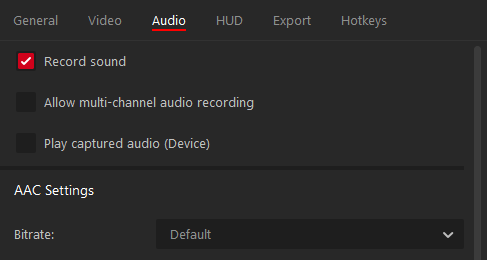
- Added "play captured sound" option for primary audio devices in Device Mode (useful for capturing devices/cards).
- Fixed built-in video player not working on old GPUs.
|
|
|
- HOTFIX: Fixed recording/streaming randomly stopping by new hotkeys added in version 4.37.0.
|
|
|
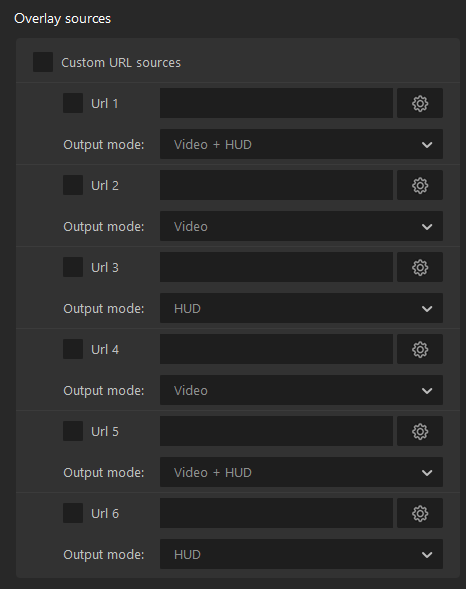
- Support for displaying all URL web overlays on HUD.
- Full screen preview mode for systems with more than one monitor (default hotkey CTRL + SHIFT + F).
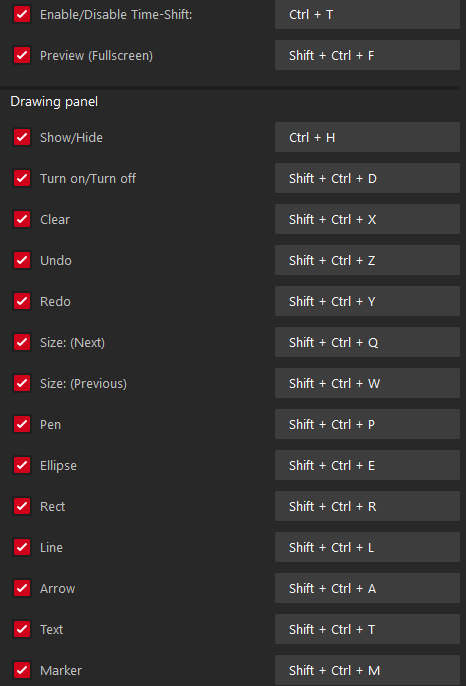
- Configurable hotkeys for drawing panel tools (marker, ellipse, rectangle, text...) and functions (undo, redo, clear...).
|
|
|
- Fixed rotated display recording/streaming.
- Fixed selected application window recording/streaming with scaling enabled.
- Added support for Instreamly.com service ads widgets.
- Improved built-in video player.
- YouTube HDR streaming improvements in RTMP format.
- Important imporovements for Intel UHD 770, Iris Xe...
- Improved support for hardware capturing devices.
- Stability improvements.
|
|
|
- Added AI-powered face tracking for webcams, to make your face always stay in the center (available in webcam settings window).
- Fixes and improvements for recording/streaming rotated displays (portrait monitor mode).
|
|
|
- Added webcam alpha mask (rectangle, ellipse and circle) with alpha blending and edge blur effect.
- Added on-key webcam show/hide cross-fade effect.
- Improvements and optimizations in webcam recording.
- Internal video player improvements.
- Stability improvements.
|
|
|
- MPEG-2 TS format improvements.
- Added Time-Shift capture in MPEG-2 TS format (*.mts).
- Reduced minimal capture region width.
- Stability improvements.
|
|
|
- HOTFIX: YouTube upload problems (privacy and category selection).
- Added MPEG-2 Transport Stream muxing for recordings (excluding Time-Shift captures).
|
|
|
- Added Enhanced RTMP support for YouTube live streaming (in HEVC format, AV1 coming soon).
- Added predefined presets for 90 live streaming services.
- UI improvements.
- Stability fixes.
|
|
|
- Added mouse cursor showing/hiding in selected window recording/streaming mode (Windows 10/11).
- Removed yellow border around selected window during recording/streaming (Windows 10/11).
- Stability fixes.
|
|
|
- Fixed problems with CAPCOM RE Engine.
- Improvements for systems with more than one GPU.
- Stability fixes.
|
|
|
- Improved HUD display time after Action startup.
- Fixed Action not showing HUD in Screen capture mode (when run without administrator rights in full screen games).
|
|
|
- HOTFIX for selected region recording/streaming.
|
|
|
- Important fix for Alt-Tab problems in some rare cases (ie. Apex Legends).
|
|
|
- Important fix for Vulkan API.
|
|
|
- Fixed exclusive spatial audio recording from selected application (like Forza Horizon 5, Resident Evil Village etc.).
- Stability fixes.
|
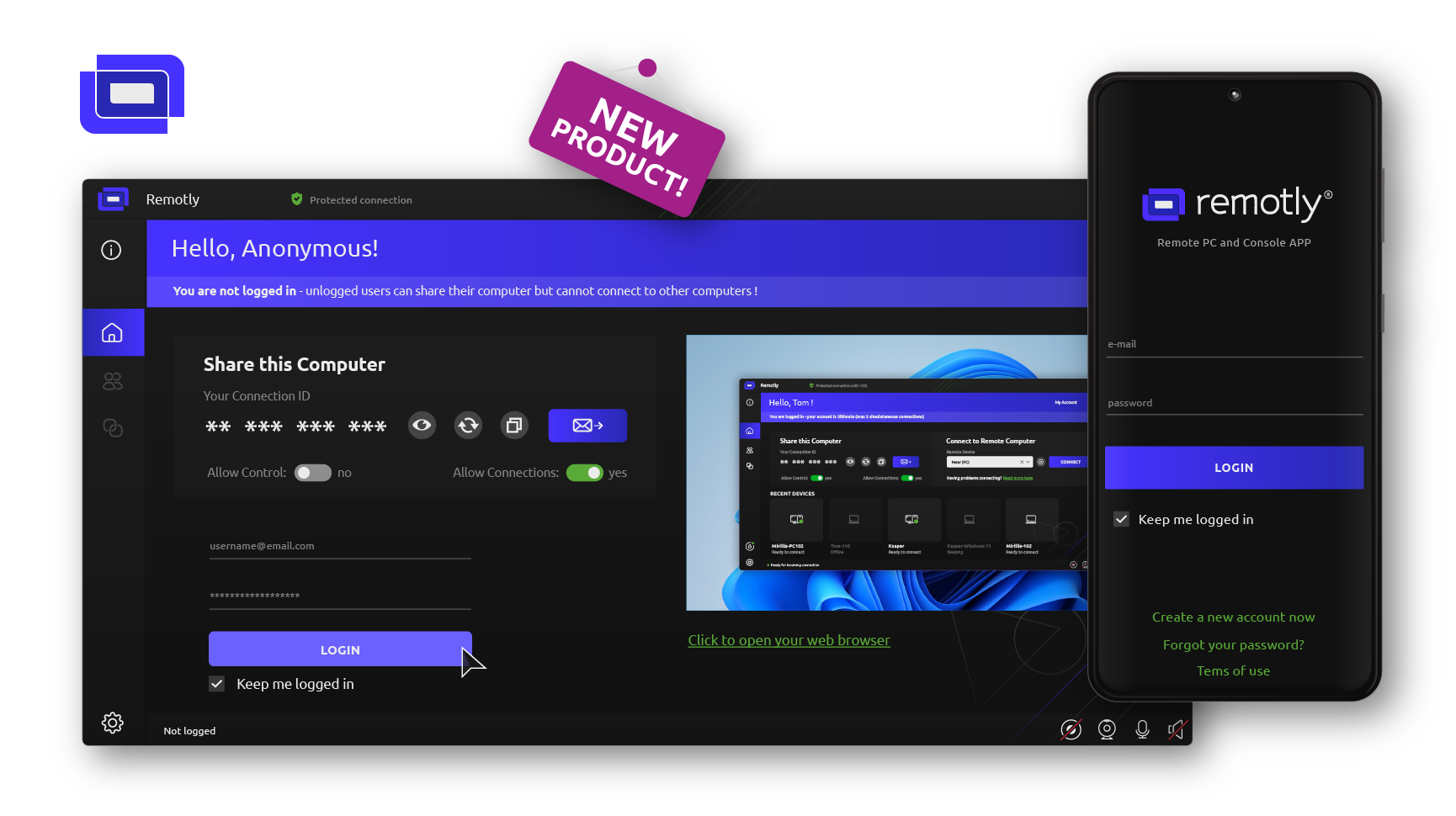
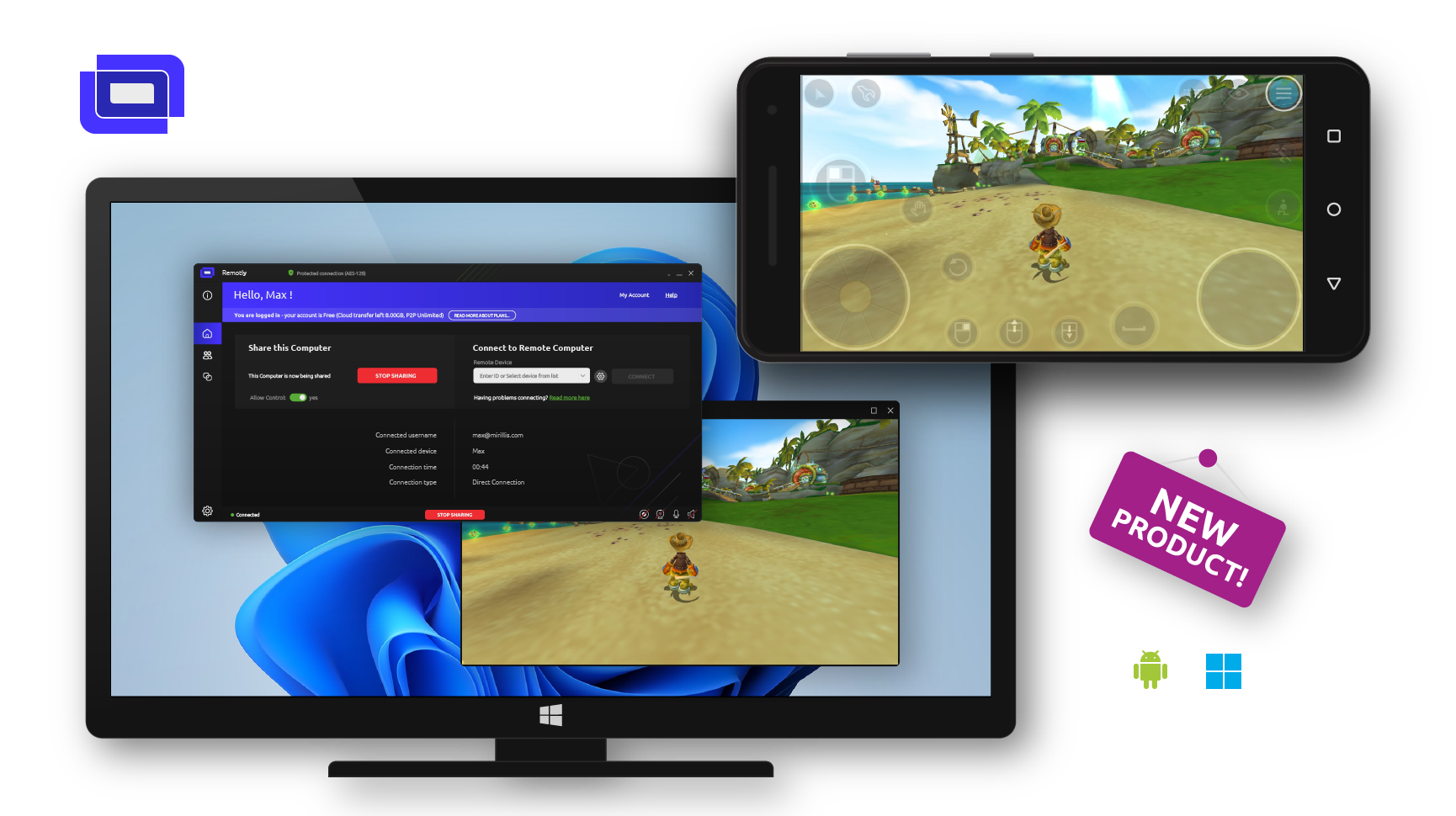
After 9 months of intense development, bug fixing and many unslept nights we are proud to announce that the public release of our new product Remotly is ready!
Remotly is our Next Generation Remote Connectivity Software and Hardware platform that allows remote access to any PC or Gaming Console** from anywhere from Android and iOS* devices!
All this in super high video quality (up to 100Mbps in HDR) and ultra low latency (less than 10ms lag and up to 240fps) for P2P and Cloud connections.
Want to play ANY PC game remotely with your friends, with built-in voice chat? Now you can do it with one app - Remotly!
Want to work remotely, not even feeling that your are away from your powerful machine? No problem, just install Remotly on your phone, tablet or low power laptop!
To learn more about Remotly for Remote Work please check https://remotly.com/work-remotely-remote-support
To learn more about Remotly for Remote Gaming please check https://remotly.com/play-remotelyWe have done our best to make this initial public revision as stable as possible but please join Remotly Community at https://community.remotly.com to help us improve it by reporting any problems you find. The Android APK (BETA) can be downloaded from https://remotly.com/download page. It will be soon available for download from Google Play store for free. To use all advanced features like remote display blanking (for power saving) please use the installer or run the portable version with administrator rights.
Administrator rights are also required to remotely access logon screen to login to your PC when it is locked.
Remotly will also include a unique feature called "Virtual Game Machine" that allows to share any game from your PC and still use the computer normally! This way 2 or more people can use one PC at the same time!
Remotly is a true game changer!
(*) iOS application will be available soon
(**) remote access to any gaming console from PS2 to PS5, Nintendo Switch and Xbox requires additional hardware that will be distributed by Mirillis company (more details soon)
|
|
|
- Fixed HDR detection (Windows 10/11 22H2 update).
- Fixed selected window capture (Windows 10/11 22H2 update).
- Stability fixes.
|
|
|
- Fixed Ricochet anti-cheat compatibility problem (CoD: Warzone).
- Fixed zero-width space problem with specific window titles used for file name creation.
- Stability fixes.
|
|
|
- Fixed cursor scaling when video is not captured in original resolution (MP4).
- Fixed problems with latest Nvidia drivers.
- Stability fixes.
|
|
|
- Important fix for computers with multi GPU setups (Intel + Nvidia).
- Fixed mouse cursor recording (high DPI displays).
|
|
|
- Reduced RTMP/RTMPS disconnection/reconnection time to 5 seconds (after internet connection loss).
|
|
|
- Integration with CEF engine v95.
- Added support for high DPI displays (200% and 300% automatic interface scaling).
- Added support for virtual/software emulated GPUs.
|
|
|
- CRITICAL FIX for YouTube streaming/uploading using YouTube API (Account Manager).
- Fixed problems with high bitrates on AMD GPUs with latest drivers installed.
- Added Thai translation.
|
|
|
- Fixed desktop capture for Nvidia Optimus and AMD Switchable Graphics when run without administrator rights.
- Improved support for dual Intel GPU setups (Intel UHD/Xe + DG1/DG2 and similar configurations).
- Improved translations.
|
|
|
- Improved very long recording saving (application is no longer blocked during this process).
- Added mouse cursor highlight (for MP4 files). Mouse cursor highlight is enabled by selecting "visualize mouse clicks" option in Settings->Video tab. This option works in "Active screen" capture mode only.
- Added option to change Action! process priority (Settings->General tab).
|
|
|
- Fixed microphone noise reduction for auxilary audio track (recorded to separate file)
|
|
|
- Integration with new Twitch Helix API
- Improved audio synchronization (when recording additional audio track to a separate file)
- Stability improvements
|
|
|
- Added possibility to switch active screen (default F8 hotkey) during recording/streaming (when multiple displays are connected to more than one GPU)
- Fixed video scaling for games rendered in DirectX 8 (and older)
- Added option to save Time-Shift setting in Screen Mode
- Nvidia SLI support improvements
- Stability fixes
|
|
|
- Added support for old DirectX 3 - DirectX 7 games
- Fixed corrupted recordings when audio device is lost, invalidated or disconnected
- Fixed problem with Alt+Tab during audio device properties/configuration change
- Fixed silent installation mode
|
|
|
- Fixed crash upon entering Hotkey Settings with more than 16 HID devices available in the system
|
|
|
- Screenshots can now be automatically grouped into folders just like video recordings (after enabling 'Group recordings into folders' option)
- Xbox gamepad buttons can now be assigned as hotkeys
- Fixed JPEG XL HDR screenshots not working in some situations (.jxl files are now supported from the latest official Chrome browser versions)
|
|
|
- Action! can now be installed (and run) without administrator rights on administrator accounts
- Fixed spatial audio capture on newest Windows 11 builds with audio device set to Selected Application
- Fixed HDR detection on newest Windows 11 builds
- Fixed very long URL handling for web browser widgets
- Internal video player improvements
|
|
|
- Fixed HDR10 recording/streaming support for AMD GPUs with latest (October) drivers installed
- Fixed problem with Forza Horizon 5 (Steam version)
- Internal video player improvements
- Stability fixes
|
|
|
- Fixed mouse cursor rendering in high DPI or with custom cursor size/shape set
- Fixed JPEG XL HDR metadata (JPEG XL screenshots are now compatible with latest Chrome browser that supports JPEG XL)
- Fixed RTMP/RTMPS and HLS streaming auto-reconnection
- Added Acoustic Echo Canceller (AEC). Removes echo when recording without headset microphone or on systems with no hardware echo canceller. This option can be set in microphone settings window
|
|
|
- Fixed mouse cursor not being captured properly in some rare situations
|
|
|
- Added automatic GPU selection (used for video encoding acceleration) on systems with more than one GPU from the same vendor
- Improved automatic audio source switching (when primary sound device is set to selected application)
- Added support for latest Windows 11 insider build (22449.1000)
|
|
|
- Fixed automatic recovery of corrupted MP4 recordings
|
|
|
- Fixed long file and folder names support
- Fixed stream disconnecting after 4 hours and 39 minutes
- File manager fixes
- Vulkan screenshots support (works during recording/streaming)
- Removed 12-hour single recording limit (new limit is 47 days)
|
|
|
- Fixed problem with HDMI/Camera streaming in Device Mode (black video was sometimes captured)
- Improved recordings grouping into folders (Window and Device folders are created in Window and Device modes)
|
|
|
- NEW FEATURE: Group recordings into folders (option available in General Settings tab)
- Fixed OpenGL problems on Nvidia Optimus Laptops
- Fixed rare application freeze after stopping streaming
- Added Maximize/Restore button to the user interface
- Stability fixes
|
|
|
- Fixed memory leak in OriSound module (capturing audio from selected application/game)
- Improved FPS counter precision
|
|
|
- Fixed Facebook login stuck accepting cookies (forever loop)
- File naming improvements
- Fixed black desktop recording on admin accounts with modified security policies
- Fixed spatial audio desynchronization (when recording audio from selected application/game)
- Stability fixes
|
|
|
- Fixed Facebook and Twitch login when display scaling is set to 175% or more
- Fixed HDR detection on Windows 11 and latest Windows 10 Insider builds
- Improved original spatial audio soundtrack recording from selected application/game
- Fixed recording region disappearing after snapping to desktop
- Fixed invalid video horizontal resolution when auto-crop to 16:9 or 21:9 is used
- Fixed mouse cursor position in some specific situations
|
|
|
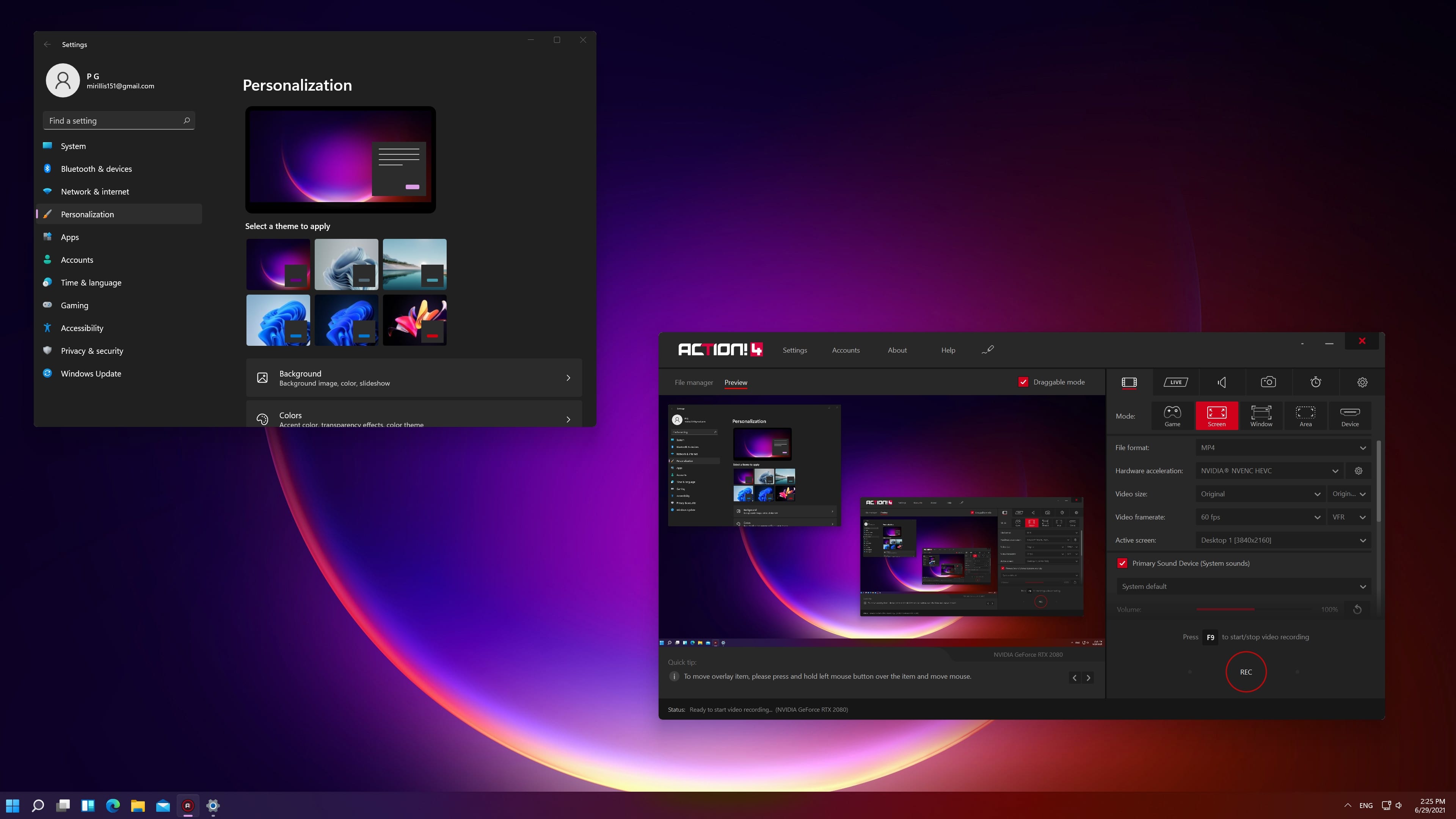
- Support for Windows 11*
- New YouTube login method (needed after 30th June since embedded browser login will no longer be supported and login using certified web browser like Chrome is required)
- Fixed Facebook livestreaming using URL/Streamkey after recent Facebook API changes
|
|
|
- HOTFIX: YouTube live streaming audio problem has been fixed
|
|
|
- Improved audio recording from selected applications and games
- Vulkan API support improvements (updated to version 1.2). Fixes issues with some titles
- Improved recording file naming
Action! 5 status update:
To improve UI performance we have to rewrite Action 5 rendering engine to work entirely in 3D. This will allow us to support dynamic scaling to any DPI (100%, 125%, 150%... user interface size).This will also allow us to visualize 3D transitions between scenes and add amazing video effects in real time (like advanced sharpening, color enhancement and many others).
We are also releasing a new free add-on product soon: "Mirillis AI virtual cam" that will allow to remove webcam background in amazing quality and replace it with images or videos! You will be able to use it in any application (including Action of course) and on any CPU/GPU.
Thank you!
|
|
|
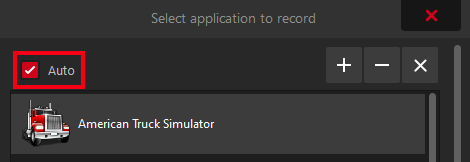
- To allow easier use of OriSound function (recording original audio directly from games and applications) a new Auto mode has been added.
In this mode (with Game Mode set and audio device set to Selected Application) Action! will automatically switch audio source to selected/active game.
- Fixed AVerMedia GC573 4K HDR capture card sound support
- Added volume meter for primary and secondary (microphone) devices displayed on UI
- Added live sound playback (via PC speakers/headphones) of audio from capturing devices
- Fixed OriSound function not working properly with suspended UWP processes
|
|
|
- NEW FEATURE: Kernel Streaming (KSProxy) audio recording needed for capturing sound from capture cards like Elgato 4K60 PRO HDR (with this hardware it is now possible to record and livestream 4K/HDR video from Playstation 5 and Xbox Series X consoles)
- Fixed 7.1 audio downmix to stereo
- Improved OriSound (original soundtrack extraction from games and applications) function compliance with several anti-cheat systems
|
|
|
- NEW FEATURE: OriSound - long-awaited feature that allows to record audio exclusively from selected game or application!
Don't waste money on additional PC or specialized headphones!
Now you can select your favorite voice chat application (like Discord) and record it into separate audio track that will not be mixed with main audio track!
Additionally the sound you record will never be modified by sound card post-processing so you always get the original volume, pitch and tone.
It will also not get disturbed by random system "blips" comming from popup windows etc.
HOW TO USE ORISOUND:
1. Use "Selected application" from audio device list (either primary, secondary or aux device).
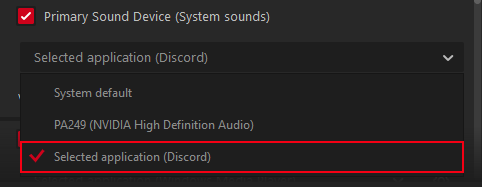 2. A window will appear showing currently detected sound sources in the system (from system audio mixer).
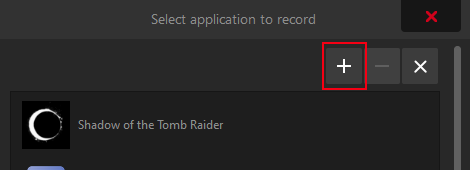
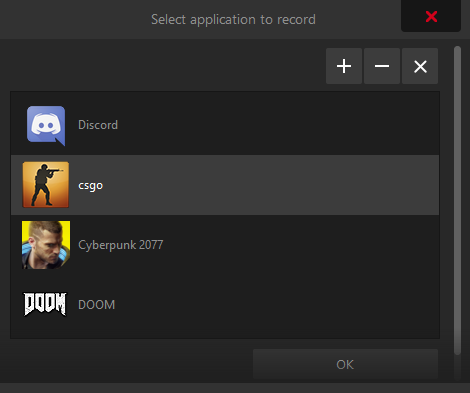 3. If the application you want record sound from is not running or is not visible on the list you can use the '+' button to select its exe file (you need to manually find its location first).
 NOTES: This feature might not work for anti-cheat protected games and some games with spatial audio like Dolby Atmos.
This will be added soon in version 4.18.0.
NOTES: This feature might not work for anti-cheat protected games and some games with spatial audio like Dolby Atmos.
This will be added soon in version 4.18.0.
- Fixed CS:GO with Nvidia SLI enabled
- Support for duplicated monitors has been fixed
- Improved downmix of multi-channel audio to stereo
- Fixed HDR10 recording on AMD GPUs with latest AMD drivers installed
- Added fullscreen mode to JPEG XL viewer
|
|
|
- Important fixes for multi-GPU mobile devices
- Fixed video scaling problems in some situations
- Improved AMD Freesync and Nvidia G-Sync technology support
|
|
|
- Fixed YouTube API credentials expiration after one hour
- New JPEG XL (JXL) HDR capture fully compliant with final ISO/IEC 18181 JPEG XL standard
- Time-Shift possible in Screen Mode (last option on Screen Mode ribbon)
- Improved Nvidia DSR and AMD VSR support
- New Nvidia SLI recording engine (up to 40% performance improvement in Direct3D 12)
- Added possibility to record Vulkan SLI using Window capture mode (desktop capture must be used from window picker)
- Improved AVI recording performance
- Improved CS:GO support
- Stability fixes
|
|
|
- HOTFIX: Fixed HDR detection for old HDR games
- HOTFIX: Fixed random Action! closing on Windows Insider builds
|
|
|
- Added 32:9/21:9 to 21:9/16:9 real-time video cropping
- Added 360fps capture
- Improvements for latest Windows 10 Insider builds (HDR detection in windowed mode, display scaling etc.)
- Improved capture smoothness for various framerates
- HDR detection improvements
- Performance and stability improvements
|
|
|
- Fixed virtual display scaling support for Windows 20H2 version
- Fixed HDR10 support detection for AMD GPUs with newest drivers installed
- Stability fixes
|
|
|
- NEW: Official support for YouTube HDR live streaming
- Fixed support for old GPUs with no DirectX 11 level 11.0 support
- Stability fixes
Read more about YouTube HDR live streaming:
https://blog.youtube/news-and-events/seeing-believing-launching-hdr-live-streams/
https://support.google.com/youtube/answer/10265272
|
|
|
- IMPORTANT FIX for MJPEG webcams
- IMPORTANT FIXES for some capturing devices
- Added HDR10+ metadata injection for Vulkan games and apps
- Fixed web overlay cropping
- Fixed web overlay positioning on video
|
|
|
- Added HDR10+ real time metadata injection into captured HDR video streams
- Added software Motion JPEG webcam decoding
- Fixed desktop recording when display scaling or high DPI are enabled on Windows 10 version 20H2
- Performance optimizations for GPUs not supporting DirectX 11.1
- Fixed DirectX 8 scaling (for old games)
- Improved support for 4K HDR hardware capture cards
- Added support for Intel DG1 GPU (Intel multi GPU support)
- Fixed streaming to Facebook wall (using Account Manager)
|
|
|
- Improved HDR video upload to YouTube
- Added Time-Shift recording in HEVC and HDR formats
- Fixed webcam not appearing in Time-Shift with record webcam to separate file option selected
- YouTube HLS streaming improvements
|
|
|
- HOTFIX: Fixed RTMPS streaming to Facebook (after latest Facebook server changes)
- HOTFIX: Fixed MP4 support in DaVinci Resolve and Vegas video editors
- HOTFIX: Fixed video stuttering in low frame rates (24fps etc.)
- Fixed HDR Vulkan capturing with disabled VSYNC
- Stability improvements
|
|
|
- Added webcam and graphics overlays Z-order and horizontal and vertical flipping (right click on overlay to show context menu with options)
- Fixed MP4 support in DaVinci Resolve
- Added dynamic broadcast creation using YouTube API (old version will no longer work)
- Fixed direct HDR videos uploading to YouTube (created using AMD GPU hardware acceleration)
- Added HLS streaming to YouTube!
- Added HDR to SDR tone-mapping exposure control (function available in hardware acceleration settings popup)
- Added SDR to HDR overlay brightness control (function available in hardware acceleration settings popup)
- Stability improvements
|
|
|
- Added new, easier to use Window capture mode
- Fixed long MP4 recording (over 6 hours)
- Improved 8K recording in AVI format
- Improved capturing performance on Intel GPUs
- Improved capturing performance on Nvidia Optimus and AMD Switchable Graphics systems
- Added AMD GPU selection on systems with more than one AMD GPU
- Improved video preview on multi-GPU systems
- GUI improvements
|
|
|
- Fixed YouTube login after latest Google API changes
- Fixed problems with some Nvidia mobile GPUs (920M etc.)
- Stability improvements
|
|
|
- Added crash dump report uploading to cloud (upon user acceptance)
- Stability improvements
|
|
|
- Fixed overlay graphics opening
- Added automatic Windows Error Reporting to improve support/bug fixing speed
Where to find and how to send crash dump report file(s)?
To allow faster problem solving/bug fixing if you encounter an Action! crash please look into the CRASH folder that is created in Action!'s installation folder.
There will be two files there named crashdump.dmp and a log file with your system specification (devices installed etc.)
Please kindly send us these files if a crash occurs and we will investigate them and provide a solution in the shortest possible time.
|
|
|
- Fixed web overlay sounds playback
- Fixed compatibility with specific applications and games
- Added automatic logs that help in solving problems
How to use automatic log files?
Log files are created in Temp folder (this can be either C:\Windows\Temp or C:\Users\UserName\AppData\Local\Temp folder).
Each application that is captured gets its own log file that is named "exe_name"_action.log. The "exe_name" part can be found using Windows Task Manager.
Sending this file to Mirillis support team will shorten the time needed to resolve a problem.
|
|
|
- Fixed problems with OpenGL support (X-Plane 11 crash etc.)
- Fixed Doom Ethernal not starting after latest update with Action Vulkan layer installed
- Fixed Facebook login from countries like Thailand
- Fixed AMD AMF HEVC and HDR10 support in Vegas editor
- Fixed some Vulkan BattleEye protected games not starting with Action Vulkan layer installed
- Stability improvements
|
|
|
- NEW easy to use selected application window recording/streaming and recording/streaming of multiple desktops in a single video file (link to video tutorial is available below)
- Added support for 8K MP4 video capture for newest Intel and Nvidia GPUs
- Fixed system/driver crash after hardware PlayReady 3.0 DRM is enabled with Action running
- Fixed 240fps recording in HDR mode
- Fixed Vulkan HDR capturing in active screen mode
- Stability improvements
Presented feature requires Windows 10 version 1903 (or newer)
Watch video about this new feature
|
|
|
- CRITICAL FIX for Windows 10 version 2004 (May 2020 update)
- Improved 120/144/240fps recording (less frames are dropped, 1080p@240fps is possible on selected GPUs like GTX 1070)
- Added selected application window recording/streaming
- Fixed application hanging after logging in to an unverified Google/YouTube account
- Time-Shift maximum duration is now 30 minutes
We advise to record/stream Vulkan applications in Game mode (capturing Vulkan HDR in Screen mode is currently not supported).
|
|
|
- Important fix for hardware capturing devices support
|
|
|
- Added 240fps video capture (Use with caution! May not work on all system configurations and in HDR. Not recommended above 1080p)
- Important fix for constant frame rate (CFR) recording/streaming when CPU/GPU loads are high
- Further stability fixes/improvements for DirectX 10/11/12 capturing when Alt+Tab (entering/leaving fullscreen mode) is being used
- Fixed wrong HDR detection after using Alt+Tab (entering/leaving fullscreen mode) in some situations
- Added new 1440p and 2160p predefined video size profiles
- Fixed application hanging after URL source enabling/disabling (using tick button or hotkey)
- Fixed some URL sources not displaying properly
|
|
|
- NEW FEATURE: JPEG XL screenshot capturing in true HDR10 is now possible!
- Microphone volume boost to 200% level is now possible
- HUD is now rendered in true HDR for HDR desktop and HDR games using 64 bits per pixel color
- Fixed Alt+Tab crashing in some DirectX 10/11 games and applications
- Improved ST.2084/BT.2020 HDR10 video signaling
- Fixed randomly corrupted (green) recordings using hardware accelerated HEVC encoding on Nvidia GPUs
- Fixed maximum allowed AMD AMF (VCE 1.0 to 4.1) video encoder resolution
|
|
|
- Fixed active screen switching (on accounts without administrator rights)
- Fixed desktop capture on multi-GPU systems (on accounts without administrator rights)
- Fixed cursor position when recording regions on multiple desktops (other than primary)
- Fixed desktop capture when non-native resolution with non-native aspect ratio is selected
- Fixed Vulkan HUD not refreshing when recording/streaming is started
- Fixed support for very long streamkeys (used by Booyah live streaming service)
- Fixed not detecting specific applications as active
- Reduced minimum streaming bitrate value for 60fps
- New 30% smaller installer
- OpenGL capture fixes
- GUI improvements
|
|
|
- Fixed 4K/HDR video player not starting with hardware acceleration enabled by default
- New improved desktop video capture engine for accounts without administrator rights (guest account)
- HDR desktop capture on accounts without administrator rights is now possible
- Fixed problems when running Action! on multiple accounts at the same time (administrator and guest)
- Fixed support for older Intel GPUs running with old drivers or drivers that cannot be updated
|
|
|
- HOTFIX: Fixed Doom Eternal recording in Vulkan HDR10 mode
- HOTFIX: Improved OpenGL support on notebooks with two GPUs (integrated and high performance)
- HOTFIX: Improved Minecraft (JAVA edition) support (still the HUD is wrongly displayed in some views since version 1.13)
- Fixed compatibility with Intel GPUs when old drivers are installed or GPU does not support NV12 format
- Reduced number of requests to YouTube API Services
- Live viewers count is disabled by default
|
|
|
- HOTFIX: Fixed problems with GPUs not fully supporting DirectX 11.1 features
- Fixed region recording using Intel GPUs
|
|
|
- Improved Vulkan performance
- Fixed desktop recording when Windows 10 virtual scaling is enabled (desktop resolution is not monitor's native resolution)
- Fixed pause when no audio is recorded or no audio devices are present in the system (video only)
- Added YouTube permissions revocation after logging out in account manager
- Added Discord to built-in exclude list
|
|
|
- NEW: Real-time preview in HDR10!
- NEW: HDR10 recording/capture now available on newest AMD Vega GPUs!
- Automatic switching to SDR encoder when first video frame is not in HDR
- Fixed problems with detecting HDR video (integration with NVIDIA NVAPI and ADM AGS API for HDR output detection)
- Fixed corrupted video colors by incorrectly detecting RGB10 SDR video as HDR
- Fixed ST2048/BT2020 gamma detecting in DirectX 12 by implementing missing Windows 10 functionality
- Improved HDR10 video quality
- Fixed problems with performance on AMD RX 5700 and other new AMD GPUs (SDR encoders for all GPU vendors now work in NV12 format)
- Fixed problems with Alt-Tab in DirectX 12
- Added system sound volume boost to 200% (fixes too quiet audio recording)
|
|
|
- Fixed HDR10 glitch during video start after uploading to YouTube
- Improved HDR video source detection
|
|
|
- HOTFIX: Important fix for DirectX 9 and 10
|
|
|
- HDR10 recording improvements (fixed invalid colors in 600+ nits etc.)
- Added high quality webcam and overlays rendering on HDR video
- New high quality HDR10 to SDR real-time video conversion
- Added support for high quality HDR video screenshots
- Fixed crashing in DirectX 12 in SLI/Crossfire setups
- Up to 120fps 4K video capture in SDR mode with SLI/Crossfire
- Fixed HDR10 recording in DirectX 12 in SLI mode (not recommended, performance might be lower then in non-SLI mode)
- Fixed problems when monitor is switching to fullscreen exclusive mode in HDR mode
- Increased default video quality from Normal to High (Ultra is recommended for best quality)
- Improved Vulkan recording performance
- Added support for recording Vulkan in HDR10 mode
- Stability fixes
|
|
|
- Fixed YouTube login using account manager (for some accounts)
- Fixed Twitch login on Windows 7 and Windows 8 using account manager
- Fixed D3D10 and D3D10.1 support in DXGI 1.1 mode using new capturing engine
- Fixed region recording on Windows 7 in MP4 mode
- Fixed region recording on Windows 8/8.1/10 in AVI mode
- Fixed Nvidia SLI support (capturing in SLI mode is not recommended and may not work for Direct3D 12, HDR10 recording does not work in SLI mode)
- Fixed SRGB video capturing in AVI and cross-GPU modes
- Fixed support for systems with AMD GPU and Intel GPU working together
- Fixed support for 1366x768 displays
- Fixed black recordings in some situations with scaling enabled
- Fixed crashing when no audio devices are available in the system
- Fixed recording/streaming in odd resolutions
- Fixed Mirillis Vulkan layer reducing framerate when Action is not running (more Vulkan performance fixes and Vulkan HDR recording coming in 4.0.5 update)
|
|
|
- New capturing/recording engine for DirectX 9Ex/10/11/12/OpenGL (up to 2x performance optimisation)
- HDR10 (10bit) recording/encoding has been added. Windows 10 and a HDR monitor connected with DisplayPort 1.4 is recommended (but HDMI 2.0 will also work). Please enable HDR/Wide Color Gamut in Windows 10 display settings for selected monitor.
When using USB-C for laptops connected via HDMI adapter problems may occur (USB-C to DisplayPort 1.4 cable is recommended).
To use HDR10 mode please check Hardware Acceleration list in Action 4 video tab (main view) and select Intel or Nvidia HDR10.
- Added HEVC support for Intel and AMD GPUs
- Increased maximum recording bitrate to 200Mbps (useful for 4K@60fps HDR10 recording)
|